MS Outlook is a well-known email application. However, many users face troubles with it from time to time. Some of the most typical problems people encounter while using Outlook, include Outlook crashing during start-up, Outlook not sending emails, etc. In this article, we’ll discuss how to resolve the ‘Outlook crashes every time while opening’ issue.
Reasons for the ‘Outlook Crashes Every Time’ Issue
There are various reasons that may cause the issue. Some of the common reasons are:
• Outlook PST file is corrupted
• Virus or malware infection
• Outdated MS Outlook version
• Faulty or incompatible add-ins
• Issues with Outlook Account Settings
Solutions to Resolve the ‘Outlook Crashes during Startup’ Issue
Below-mentioned are some solutions that you may try to resolve the Outlook crashing issue:
Restart Your System
A simple system restart sometimes resolve various issues. You can restart your system to see if resolves the Outlook crashing issue. But before that make sure to exit MS Outlook completely using the End Task option. Then, reopen MS Outlook. If the problem persists, move to the next solutions.
Update your MS Outlook
If your MS Outlook is not updated, it can also be the source of the problem. In such a scenario, you can update the MS Outlook application. Here's how you can do it:
• Launch MS Outlook.
• Go to the File option.
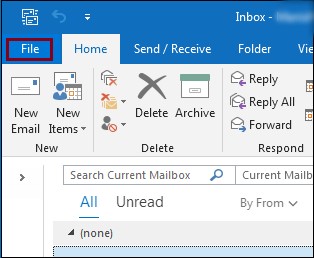
• Navigate to Office Account > Update Options.
• In the Update options, click Update Now.
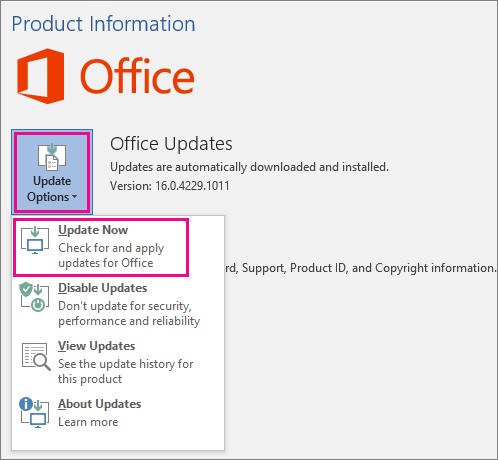
• The program will detect the updated version.
• Follow the on-screen instructions.
Your MS Outlook will get updated with the latest version. Now, try to reopen your MS Outlook and check if its works properly.
Repair Your MS Outlook Profile
Sometimes, problems with your Outlook mail profile cause the MS Outlook crash issue. You can repair your Outlook profile to resolve the issue. To do so, follow these steps:
• Launch MS Outlook and click the File option.
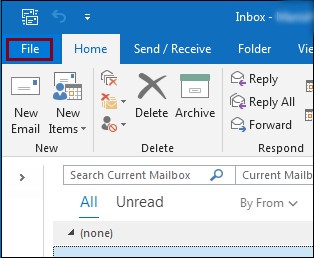
• Navigate to Account Settings > Account Settings.
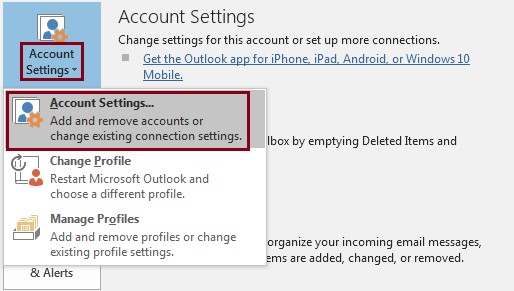
• Choose your account and click the Repair option.
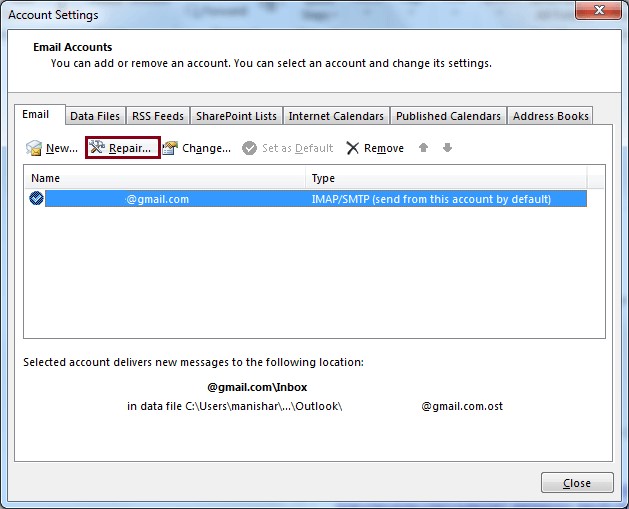
• This will open a new window. Follow the instructions displayed on the screen to complete the repair process.
• Now, reopen your MS Outlook application and check if it works now.
Remove Faulty Outlook Add-ins
Outlook's functioning can potentially be harmed by faulty add-ins running on top of it. Follow the steps below to remove faulty add-ins:
• Open MS Outlook.
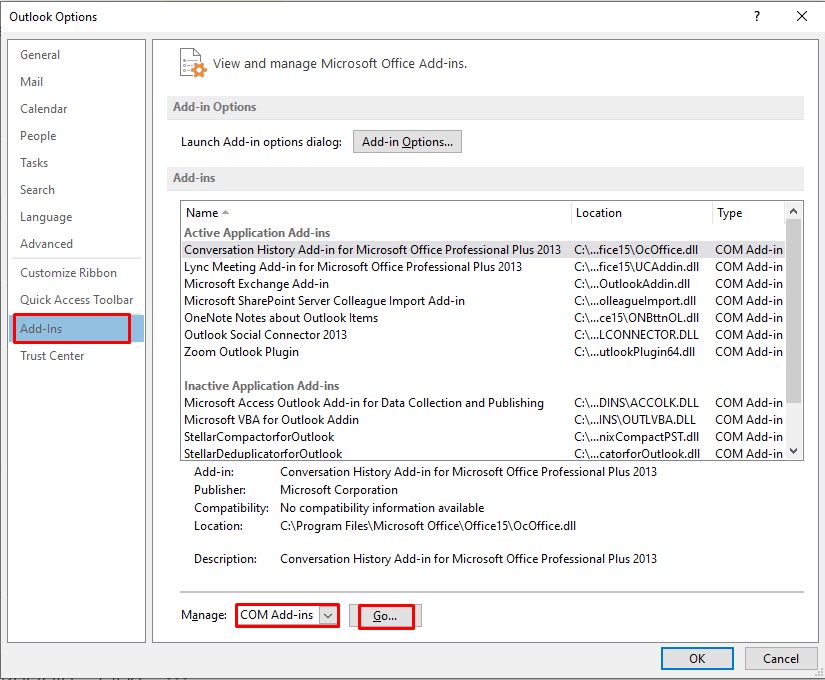
• Navigate to File > Options > Add-ins.
• Check if the Manage option has COM Add-ins selected in it. Further, click Go.
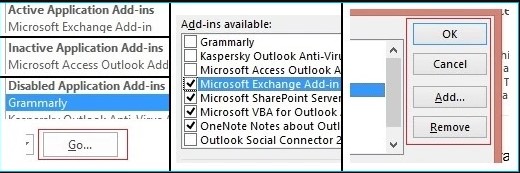
• You need to uncheck the add-ins one-by-one to disable them. This process might take time. Make sure you do not uncheck any add-ins unfamiliar to you. Further, click OK.
• Now, reopen your MS Outlook application and check if it works now. Else, try the next solution.
Rebuild MS Outlook Data File
The issue "Outlook crashes every time I open it" can also be caused by corrupt or damaged Outlook data files. In this scenario, you can recreate the Outlook data file (.ost). To get started, follow these steps:
• Open your MS Outlook.
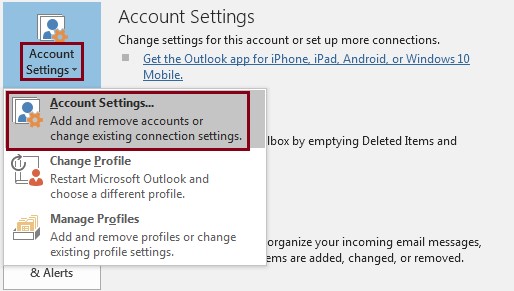
• Go to File > Account Settings > Account Settings.
• Now select the Data Files tab. Further, choose your account and select the Open File Location option.
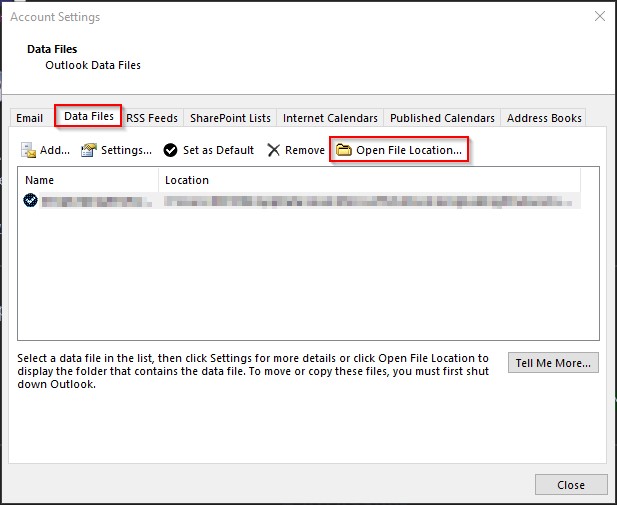
• If you see the .ost file in the opened window. Right-click the file and rename it.
• Change the file extension to .old.
• Now reopen the MS Outlook application.
Reinstall MS Office
If none of the above options worked, reinstalling MS Office might be the way to go. Here’s how to go ahead with it:
• Go to Control Panel > Program and Features.

• Go to Microsoft Office and right-click the program. Click Uninstall.
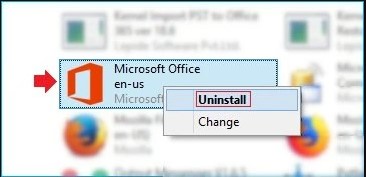
• Further, reinstall the program.
Repair Corrupt PST File
If the PST file is corrupt, your Outlook may crash unexpectedly. In such a case, you can repair the corrupt PST file using the built-in utility in MS Outlook - ScanPST.exe or Inbox Repair Utility. Here are the steps:
• Close your MS Outlook.
• Now open your File Explorer and enter: C:\Program Files\Microsoft Office\Office1X or C:\Program Files (x86)\Microsoft Office\Office1X.
• You can either type scanpst in the search box or find it manually.
• Double-click the exe to open it.
• This will open a new window. Herein, you can enter your PST file name or Browse it in the system. Note: The default PST file location is: C:\Users\yourusername\AppData\Local\Microsoft\Outlook.
• Click OK.
• Any errors in the file gets displayed on the screen.
• Click Repair to initiate the repair process.
However, this utility is limited to fix only minor corruption issues. If the PST file is severely corrupt or ScanPST fails to repair the file, you can use a third-party PST repair tool, such as Stellar Repair for Outlook. This software can easily repair severely corrupt PST file of any size and retrieve all the emails, contacts, reminders, calendar entries, and other mailbox items, including the deleted emails. You can also save the restored data in HTML, PDF, RTF, EML, and MSG file formats. You can also export the repaired file directly to Office 365 using the Technician edition of the software.
Conclusion
There are different reasons that may lead to the ‘Outlook crashes every time’ issue. However, you can follow the methods mentioned in this post to resolve the issue. If your PST file is corrupt, you can use a third-party outlook PST file repair tool, such as Stellar Repair for Outlook to repair the file. The software is available for free download.
Comments
Join the discussionNo comments yet. Be the first to comment.